
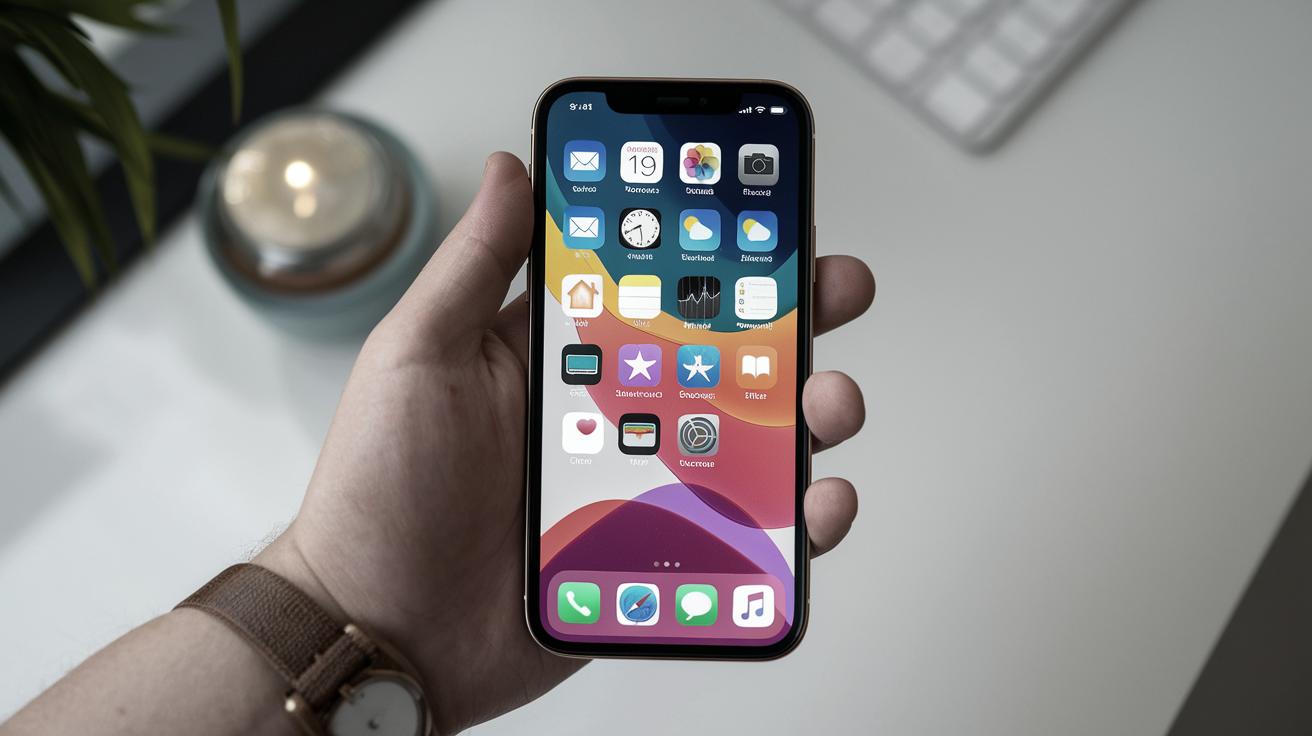
Master iPhone vibrate settings in seconds with our comprehensive 2025 guide covering all iOS versions and troubleshooting tips.
How to Turn Vibrate Off & On on iPhone
For iPhone users in 2025, mastering the control of alerts and notifications, especially vibrations, can significantly enhance their user experience and device accessibility. Whether you’re in a meeting, at a concert, or simply wish to minimize distractions while maintaining tactile feedback, knowing how to toggle the vibrate function on your iPhone is crucial for modern mobile communication.
This comprehensive guide will take you through the step-by-step process needed to turn vibrate on and off across all iOS versions, covering every detail you might need. We’ll also explore advanced customization options, haptic feedback settings, and troubleshooting solutions to fully optimize your iPhone’s notification system.
Quick Access Methods for Vibrate Settings
Quick links can save you precious time, especially when you need to adjust your phone settings promptly during important situations. To enable or disable vibrate on your iPhone, swiftly access it through the Settings app using the most efficient pathway available.
Navigate to “Settings,” then select “Sounds & Haptics” for comprehensive vibration control. From there, toggle the switches for “Vibrate on Silent” and “Vibrate on Ring” according to your specific preferences and usage patterns.
If you prefer a more straightforward path, consider using Siri voice commands for hands-free control. Simply say, “Hey Siri, turn on vibrate” or “Hey Siri, turn off vibrate,” and let Apple’s intelligent voice assistant handle the configuration instantly.
Advanced Vibration Customization Options
Beyond basic on/off controls, iOS 2025 offers extensive haptic customization that allows users to create personalized vibration patterns for different contacts and app notifications. Access these advanced settings through “Settings > Sounds & Haptics > Ringtone > Vibration” to explore pre-built patterns or create custom ones.
The Haptic Touch sensitivity can also be adjusted to match your preferences, providing more responsive or gentler feedback based on your usage style. This feature is particularly beneficial for users with accessibility needs or those who prefer subtle notification alerts.
Editorial Standards and Testing Methodology
It is essential for guides like this one to maintain accuracy and transparency, as our readers depend on trustworthy information for their daily device management. At our core, we adhere to strict editorial guidelines to ensure that every tip, trick, and guide is comprehensively researched and tested across multiple iPhone models and iOS versions.
The how-to steps provided here are sourced from reliable outlets and directly from Apple’s official support documentation, cross-referenced with real-world testing on iPhone 15 Pro, iPhone 14, and earlier models. Our testing methodology includes verification across different iOS versions to ensure universal compatibility.
Moreover, we believe in the importance of user feedback and community input. Your experiences improve the quality of the content we create and help us identify edge cases or device-specific variations. If you encounter any discrepancies or have suggestions to enhance this guide, please reach out through our contact channels.
Essential Knowledge for iPhone Vibration Management
The iPhone’s vibrate feature offers remarkable versatility and accessibility by alerting users discreetly without causing auditory disruptions in sensitive environments. Whether you’re attending a quiet event, working in a library, or simply prefer tactile notifications over sound alerts, understanding how to manipulate these settings can cater to varied daily situations.
The feature can be configured independently for different scenarios – when the phone is on silent mode versus ringing mode, allowing for nuanced control over your notification preferences. This dual-setting approach provides maximum flexibility for different social and professional contexts.
Beyond the basics, it’s also worth noting that iOS updates in 2025 have introduced enhanced haptic feedback options and improved battery optimization for vibration features. Staying updated with the latest system versions ensures you can take full advantage of Apple’s evolving accessibility and user experience features.
Step-by-Step Vibration Configuration Guide
Method 1: Using Settings App
Open the Settings app from your home screen and scroll down to locate “Sounds & Haptics” – this is your primary control center for all vibration-related settings. Tap on this option to access the comprehensive vibration management interface.
Within the Sounds & Haptics menu, you’ll find two crucial toggle switches: “Vibrate on Silent” and “Vibrate on Ring”. These controls operate independently, allowing you to customize vibration behavior for different phone states according to your specific needs and preferences.
Method 2: Physical Switch Control
The physical Ring/Silent switch on the left side of your iPhone provides immediate access to silent mode with vibration. When the switch shows an orange indicator, your phone is in silent mode, and vibration settings will follow your “Vibrate on Silent” configuration.
This hardware-based approach offers the fastest way to enable discreet vibration alerts during meetings, classes, or other situations where audio notifications would be inappropriate but you still need to receive important communications.
Method 3: Control Center Quick Access
Access Control Center by swiping down from the top-right corner (iPhone X and later) or swiping up from the bottom (earlier models) to find the silent mode toggle. This provides instant access to vibration mode without navigating through multiple settings menus.
The Control Center method is particularly useful for quick temporary changes when you need to switch between sound and vibration modes frequently throughout the day, such as moving between different work environments or social situations.
Troubleshooting Common Vibration Issues
Vibration Not Working Solutions
If your iPhone’s vibration feature stops working, first check the basic settings configuration in “Settings > Sounds & Haptics” to ensure both vibration toggles are enabled. Sometimes iOS updates can reset these preferences to default values.
Perform a soft reset by holding the power button and volume down button simultaneously until the Apple logo appears. This resolves temporary software glitches that may interfere with haptic feedback functionality without affecting your data or settings.
Weak or Inconsistent Vibration
Weak vibration can indicate hardware wear or software optimization issues. Check if the problem occurs across all apps or only specific applications, as this helps determine whether the issue is system-wide or app-specific.
Clean your iPhone case and ensure no debris is interfering with the haptic engine. Sometimes protective cases or accumulated dust can dampen vibration intensity, making alerts less noticeable during daily use.
Related Topics
Prevent Text Predictions from Putting Words in Your Mouth
Text prediction can be a double-edged sword in 2025’s advanced iOS ecosystem. While it saves time through machine learning algorithms, it can sometimes insert unsolicited words into your messages, potentially causing embarrassing autocorrect situations.
To configure this feature, visit “Settings,” scroll to “General,” then tap “Keyboard.” From there, you can toggle “Predictive” off to prevent your phone from presuming your next words, giving you complete control over your messaging content.
Personalizing these settings ensures that your messages remain authentic and intentional, avoiding the common frustration of correcting unintended predictions that can change the meaning of your communications entirely.
What Is Game Mode on iOS 18 & How To Use It
With the release of iOS 18, Apple introduced “Game Mode,” designed to enhance mobile gaming by reducing distractions and optimizing device performance through intelligent resource allocation. When enabled, notifications are minimized, focusing the device’s processing power on your game of choice.
Accessing “Game Mode” is as simple as navigating to “Settings,” finding “Game Center,” and toggling the mode as desired. This feature also optimizes battery usage and reduces background app activity during gaming sessions.
This feature aims to provide a seamless gaming experience by dedicating your phone’s full capability to the app in use, reducing frame drops and improving response times. Whether you’re an avid mobile gamer or just looking to maximize battery life during intensive app usage, Game Mode offers measurable performance benefits.
Fixed: Stolen Device Protection Thinks I’m Not at Home
Apple’s Stolen Device Protection enhances security through location-based authentication, but false positives can be frustrating when the system incorrectly identifies your location status. If your device identifies you as away from home when you aren’t, first ensure your location services are functioning accurately.
Visit “Settings,” tap “Privacy & Security,” and select “Location Services” to make necessary adjustments. Verify that “Precise Location” is enabled for system services and that your home address is correctly configured in your Apple ID settings.
In instances where issues persist, utilize Apple Support channels for resolution, as this robust security feature works best when configured precisely. Regular calibration of location services ensures optimal functionality while maintaining device security.
How to Control Your Apple Watch with Your iPhone
Your iPhone serves as a comprehensive control hub for your Apple Watch, particularly useful when managing apps, notifications, health data synchronization, and workout tracking. This integration represents Apple’s ecosystem approach to seamless device connectivity.
Open the “Watch” app on your iPhone, and from there, customize a variety of settings for synchronization, alerts, app installation, and health monitoring preferences. The app provides granular control over every aspect of your Apple Watch experience.
This integration between devices enhances functionality significantly, offering a seamless tech experience that keeps all necessary information and controls at your fingertips, whether tracking fitness goals, managing calls and messages, or monitoring health metrics throughout the day.
Why Won’t My iPad Charge? The Easiest Way to Fix It
Charging issues can be perplexing but often come with simple diagnostic solutions that don’t require professional repair services. Check for debris in the charging port using a soft brush, try different cables and power adapters, or inspect your charger for visible damage or functionality issues.
Ensure your device’s software is up-to-date as well, as software bugs can occasionally affect hardware functions, including charging protocols and battery management systems. iOS updates often include fixes for charging-related issues.
If these troubleshooting steps don’t resolve the problem, consider Apple’s support or warranty services for professional diagnosis. Ensuring your device remains functional is vital for continued productivity, communication, and access to important information and applications.
Fixed: Disney Plus Not Working on Apple TV
Experiencing issues with Disney Plus on Apple TV is particularly frustrating during planned entertainment time. Begin troubleshooting by verifying your internet connection stability and restarting both devices to clear temporary cache and connection issues.
If problems persist, uninstall and reinstall the Disney Plus app to refresh its connection and clear any corrupted data files. This process also ensures you have the latest app version with recent bug fixes and performance improvements.
For lasting resolution, keeping your Apple TV and streaming apps updated avoids compatibility issues, ensuring a smooth streaming experience across all entertainment platforms and preventing future connectivity problems.
Top Security Updates from Apple You Should Know About
Keeping abreast of Apple’s security updates fortifies your device against evolving cyber threats and potential vulnerabilities. These updates often include critical patches for security vulnerabilities discovered by Apple’s security team and independent researchers.
Make it a habit to enable automatic updates via “Settings > General > Software Update > Automatic Updates” to ensure your device remains protected without manual intervention. This proactive approach maintains optimal security posture.
Familiarize yourself with the latest changes through Apple’s official release notes so you can be aware of any additional features, performance improvements, or security enhancements that accompany these critical updates.
How to Hide Now Playing in the Dynamic Island iPhone 14 Pros
The iPhone 14 Pro’s Dynamic Island offers an innovative way to interact with media and notifications through its adaptive display technology. If you wish to hide “Now Playing” information, tap directly on the Dynamic Island to close any active media or swipe right to left on the island to minimize it.
This action allows other notifications to be more immediately visible while maintaining access to media controls when needed. The Dynamic Island’s contextual awareness adapts to your current activity and priority notifications.
Maximizing your device’s features while using media apps enhances your overall experience, giving you granular control over your notifications display during various activities, from work presentations to entertainment consumption.
How to Take a Picture on a Mac
Capturing images with your Mac is simple thanks to the built-in camera and Photo Booth application. Open “Photo Booth” from applications and use the space bar to snap photos with various filters and effects available for creative photography.
To capture screenshots, employ keyboard shortcuts like Command + Shift + 4 for selective area capture, or Command + Shift + 3 for full-screen screenshots. These tools integrate seamlessly with macOS for efficient image capture and editing.
Utilize these features to capture moments effortlessly, complementing the robust suite of media tools your Mac offers for content creation, image management, and professional photography workflows.
Why Won’t My iPhone Update? How to Get the New iOS Update
Issues updating your iPhone can stem from several common factors that are easily addressable. Ensure sufficient battery life (at least 50%), stable Wi-Fi connection, and adequate storage space for the new iOS version, which typically requires 3-5GB of free space.
A device restart might also circumvent minor glitches in the updating process by clearing temporary files and refreshing system processes. Additionally, check if your iPhone model supports the latest iOS version, as older devices may have update limitations.
Staying current with updates not only provides new features and user interface improvements but also essential security enhancements, making these troubleshooting steps pivotal to maintaining a fully functional and secure device ecosystem.
Buyer’s Guide 2025: Best Cases, Accessories & More for Your iPad
Choosing the right accessories can protect and significantly elevate your iPad experience in 2025’s competitive accessory market. From sleek protective cases to powerful keyboards and Apple Pencil alternatives, the market offers a diverse selection tailored to different usage patterns and professional needs.
Prioritize your specific needs—whether stylistic preferences or functional requirements—ensuring each accessory enhances your tablet usage without hindering the device’s elegant design or core functionality. Consider factors like wireless charging compatibility and port accessibility.
Investing in quality accessories also extends the durability and capability of your device, bringing an added layer of protection and utility for daily use, professional work, creative projects, and entertainment consumption.
Tesla Trip Planner Tips: How to Access Tesla Maps on iPhone
To integrate Tesla’s sophisticated mapping system with your iPhone, use the official Tesla mobile app to plan trips, access charging locations, and monitor vehicle status on the go. This integration provides real-time updates and optimal charging solutions for electric vehicle users.
The app’s trip planning feature calculates optimal routes based on current battery levels, charging station availability, and real-time traffic conditions, making long-distance travel more convenient and efficient for Tesla owners.
Connecting these advanced tools with your iPhone ensures seamless navigation and vehicle management, enhancing the value of both your vehicle and device by offering dynamic route management capabilities and comprehensive trip optimization.
Is Tesla Premium Connectivity Worth It?
Considering Tesla’s Premium Connectivity subscription? Evaluate the inclusion of features like live traffic visualization, satellite maps, and more robust media streaming services. For frequent travelers and daily commuters, this enhancement offers considerable value through improved navigation accuracy.
The service includes access to streaming platforms, web browsing, and real-time weather updates directly through your vehicle’s interface, reducing dependence on mobile data and providing a more integrated driving experience with enhanced connectivity features.
Weighing costs against benefits is crucial, as Premium Connectivity can bring significant convenience and enriched driving experiences for those who can fully utilize the service’s comprehensive feature set and connectivity options.
How to Find Downloads on iPhone from Safari
Accessing downloaded files from Safari on your iPhone is straightforward through multiple pathways. Within the “Files” app, navigate to the “Downloads” folder where all Safari downloads are automatically organized by date and file type for easy retrieval.
Alternatively, use Spotlight Search by swiping down on your home screen and typing “Downloads” or the specific filename you’re looking for. This method provides faster access when you remember the file name or type.
This streamlined approach allows for easier file management and organization, saving you valuable time when locating recent downloads, documents, images, or other files while maintaining productivity on the go.
How to Mark iMessage as Unread on iPhone & iPad
Marking messages as unread serves as an effective reminder system to respond later when you have more time for thoughtful communication. To do this, swipe right on a conversation in “Messages,” and tap the blue “Unread” option that appears.
This feature keeps your inbox organized and ensures important messages are revisited at your convenience, preventing the common problem of reading messages during busy periods and then forgetting to respond later when you have more time.
Maximize communication efficiency with this thoughtful feature, helping prevent overlooked correspondences in busy schedules while maintaining professional and personal relationships through timely responses.
Use iPhone 15 Pro Action Button to Translate
The iPhone 15 Pro introduces an innovative Action Button that can be customized for various functions, including live translation—ideal for multilingual environments, travel, and international business communications. This hardware feature provides instant access to frequently used functions.
Set this functionality through “Settings” under “Action Button,” choosing the “Translate” app for quick language assistance. The button can also be configured for other functions like camera access, flashlight, or voice memos based on your usage patterns.
Empower your device to assist with global communication, making travel or international business interactions more manageable with reliable, instant translation capabilities that work offline for many language pairs and provide real-time conversation translation.
Next Steps
| Topic | Description | Action |
|---|---|---|
| Turn Vibrate On/Off | Toggle vibrate for calls and alerts through Settings or Siri commands with advanced customization options. | Navigate to Settings > Sounds & Haptics or use Siri voice commands for instant control. |
| Text Prediction Control | Disable predictive text to manage auto-suggestions and maintain message authenticity. | Go to Settings > General > Keyboard and toggle Predictive off. |
| Game Mode Optimization | Enable Game Mode for improved gaming performance and battery optimization on iOS 18. | Access through Settings > Game Center for enhanced gaming experience. |
| Device Security Enhancement | Ensure accurate location settings for Stolen Device Protection functionality. | Adjust through Settings > Privacy & Security > Location Services. |
| Apple Watch Management | Control notifications, apps, and health data synchronization from your iPhone. | Use the Watch app for comprehensive setting customization and device control. |
| iPad Charging Troubleshooting | Resolve charging issues through systematic diagnostic and cleaning procedures. | Inspect cables, clean ports, or contact Apple support for persistent issues. |
| Streaming App Issues | Resolve Disney Plus and other streaming problems with connection and update checks. | Reinstall apps and ensure Apple TV system updates for optimal performance. |
| Security Update Management | Stay informed on Apple’s latest security patches and system improvements. | Enable automatic updates through Settings > General > Software Update. |
| Dynamic Island Controls | Manage “Now Playing” visibility and notification priorities on iPhone 14 Pro models. | Interact directly with Dynamic Island for contextual media and notification control. |