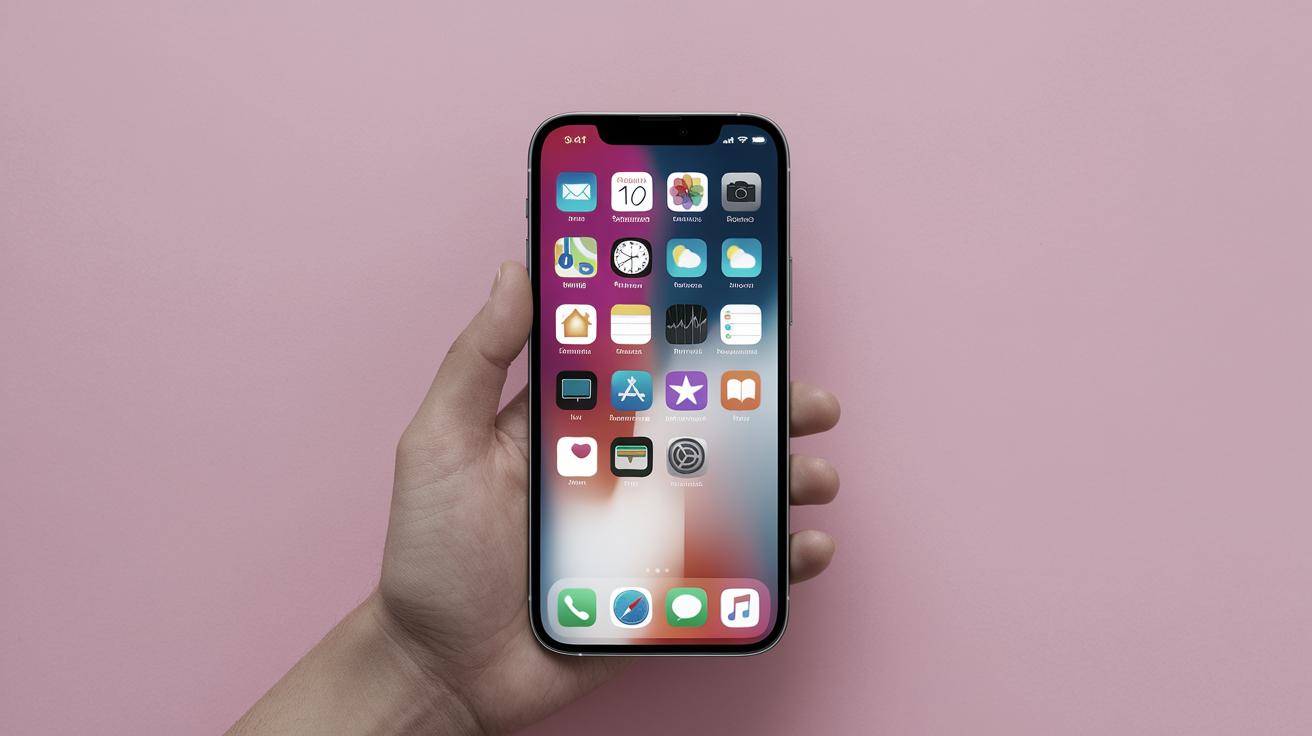
How to Unsilence Notifications on iPhone
In today’s fast-paced world, staying connected is crucial. However, managing notifications on your iPhone can sometimes be overwhelming, leading to missed messages from important contacts. This blog post will guide you through the steps to unsilence notifications and ensure you never miss an important alert. From understanding the Do Not Disturb (DND) feature to managing notifications for specific contacts in Messages, we cover all the necessary details. Additionally, we’ve included related topics and articles for further exploration and handy tips to enhance your iPhone experience.
Can You Put One Person on DND?
The Do Not Disturb (DND) feature on iPhones is a helpful tool for minimizing interruptions. However, there might be times when you wish to silence all notifications except from a particular contact. Unfortunately, as of the latest updates, you can’t put just one person on a personalized DND setting. DND affects all contacts uniformly, silencing notifications across the board.
While some may find this limiting, there’s a workaround: using the Focus modes introduced by Apple. Focus modes can be customized to allow specific contacts to break through the silence, ensuring you receive alerts from them even when DND is active. By customizing these settings, you can prioritize who reaches you during periods of concentration or rest, effectively creating a more selective notification experience.
How do You Silence Notifications for Certain Contacts in Messages
What to Know
Silencing notifications for specific contacts is easy in the Messages app. By muting a conversation, you can choose to stop receiving alerts from particular contacts while keeping the rest of your notifications active. To do this, simply open the Messages app, select the conversation you wish to mute, and tap the contact’s name or image at the top of the screen. Here, you can toggle on ‘Hide Alerts’ to prevent notifications from that conversation only.
Pro Tip
Pro users take advantage of customized notification settings to enhance their communication management. Consider using group chats instead of individual conversations to streamline your notifications. Group chats allow you to mute broader conversations while receiving alerts for more personal or urgent matters. Additionally, using app notifications wisely can enhance your productivity and prevent unnecessary distractions.
FAQ:
If you have more questions about managing notifications, rest assured you’re not alone. People often wonder if these settings affect calls and how to ensure critical messages get through during silenced times. The best approach is to experiment with Focus modes and priority settings until you find what works best for your lifestyle and communication needs.
Related
Management of notifications is a crucial aspect of digital life. If you are looking to optimize your device further, explore related topics like the use of Apple’s Focus modes and learn how these powerful tools can aid in maintaining a distraction-free environment.
Related topics
Related Articles
3 Quick Fixes for AirPods Case Battery Drain
How to Use Image Wand on iPhone with Apple Intelligence
Why Is My FaceTime Camera Not Working on iPhone & iPad
Check Out Apple’s New Sports App
FaceTime Keeps Hanging Up on iPhone & iPad
Fix Voice Message Transcription Not Working iPhone
New Audio Experiences & Hearing Health Upgrades With AirPods
iView: iPhone in Italy
How to Fix Messages in iCloud Not Available on iPhone & iPad
Apple Jumps on the AI Bandwagon with Apple Intelligence
How to Use Interactive Widgets on iPhone
The 5 Best Apple Watch Ultra Bands for Every Lifestyle
Hands on with Apple Vision Pro
Buyer’s Guide 2022: Best Cases, Accessories & More for Your iPad
Fill Out Forms Automatically on iPhone & iPad
The 4 Easiest Ways to Use Speed Dial on iPhone
Editorial Ethics.
| Key Information | Details |
|---|---|
| DND Specifics | Can’t customize DND per person but use Focus modes for specific contact alerts. |
| Silencing Messages | Mute conversations directly in Messages via ‘Hide Alerts’. |
| Related Tools | Explore Focus modes and group messaging for enhanced notification management. |
| Further Reading | Articles on optimizing iPhone features and managing notifications. |