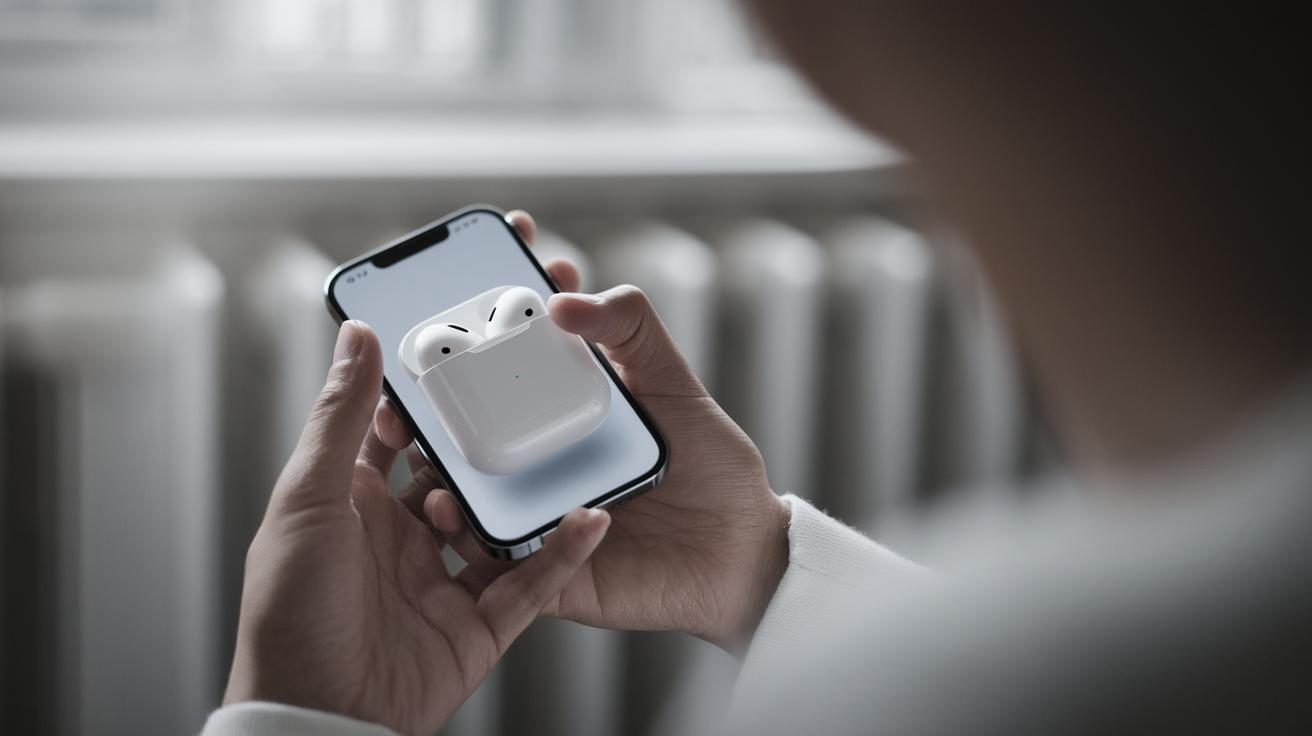
How to Connect AirPods to Samsung: A Comprehensive Guide
Whether you’re a long-time Android user intrigued by Apple’s sleek AirPods design or a former Apple device enthusiast transitioning to Samsung, understanding how to pair AirPods with a Samsung device is essential. This guide will navigate you through the process of connecting AirPods and AirPods Max™ to your Android device. We’ll also explore how to connect other Bluetooth devices to Samsung smartphones and tablets. Additionally, we’ll clarify which devices cannot connect to Android systems via Bluetooth to help you avoid common connectivity pitfalls. By the end of this blog, you’ll have all the knowledge you need for seamless Bluetooth pairing experiences with your Android device.
Connect AirPods to your Android device
Connecting standard AirPods to your Samsung device is a straightforward process. Start by ensuring your AirPods are sufficiently charged and that your device’s Bluetooth settings are turned on. Place your AirPods in their charging case, and keep the lid open to activate pairing mode. On the back of the charging case, press and hold the setup button until the status light begins to flash white. This indicates your AirPods are ready to pair.
On your Samsung device, navigate to the Bluetooth settings through the Settings app or the quick settings menu. Make sure Bluetooth is enabled, and then select ‘Pair new device’. Your AirPods should appear on the list of available devices under their designated name. Select them to initiate pairing. Upon successful connection, you should be able to listen to audio seamlessly through your AirPods, enjoying their high-quality sound from your Samsung device.
Connect AirPods Max™ to your Android device
The process of connecting AirPods Max™ to your Samsung device mirrors that of connecting standard AirPods, with a few unique steps owing to their over-ear design. Begin by ensuring that your AirPods Max™ are charged. Then, press and hold the noise control button until the LED indicator starts flashing white.
On your Samsung device, access the Bluetooth settings as usual. With Bluetooth enabled, select the option to pair a new device. Your device should automatically detect the AirPods Max™ once they enter pairing mode, displaying them on the list under their name. Tap on the AirPods Max™ to establish a connection. After pairing, you’ll be able to switch seamlessly between noise cancellation and transparency modes directly from your Samsung device, enhancing your listening experience.
Connect other Bluetooth devices to your Android device
Beyond AirPods, a vast array of Bluetooth devices can be connected to Samsung devices, enhancing the user experience. Whether it’s headphones, speakers, or smartwatches, the Bluetooth protocol ensures a wide compatibility range across different devices. Start by placing your Bluetooth device into pairing mode, which often involves pressing a designated button until an indicator light signals readiness.
On your Samsung device, accessing the Bluetooth settings can be done via the Settings application or directly from the quick menu by long-pressing the Bluetooth icon. Activate the Bluetooth setting, and then choose ‘Pair new device’. Once your Samsung device scans for available options, select your device from the list. Confirm the pairing process if required, ensuring a stable connection for all your audio and data transfer needs.
What can’t connect to Android devices through Bluetooth
While Bluetooth offers impressive versatility, certain devices are not compatible with Android platforms. Proprietary Apple devices like the Apple Pencil are designed specifically for iOS, lacking necessary drivers for Android compatibility. Similarly, features such as the automatic ear detection and the native voice assistant integration for AirPods are iOS exclusive, though basic audio functions remain accessible.
It’s important to research product specifications and reviews before attempting to connect, to avoid potential connection issues. For specialized peripherals that require applications not available on Android, turning to alternative solutions within the Android ecosystem might prove more effective.
Related resources
If you’re seeking additional guidance, numerous online forums and support websites can provide assistance. Communities like Reddit’s r/Android or dedicated tech forums offer peer support where users share tips and troubleshoot problems. Samsung’s official website and help center also contain a wealth of information and step-by-step instructions to secure successful Bluetooth connections.
Moreover, reading additional articles on related device compatibility and troubleshooting could enhance your understanding of Bluetooth connectivity. Explore user manuals for your Samsung device, or even consult expert tech blogs that delve deeper into pairing procedures and best practices.
Next Steps
| Task | Steps |
|---|---|
| Connect AirPods to Android | Open charging case, press setup button, use device’s Bluetooth settings to pair |
| Connect AirPods Max™ to Android | Press noise control button, enable device’s Bluetooth, pair through Bluetooth settings |
| Connect other Bluetooth devices | Activate pairing mode on device, use Samsung Bluetooth settings to connect |
| What can’t connect | Proprietary Apple and non-compatible devices, check compatibility before purchasing |
| Related resources | Forums, tech blogs, official support sites for additional help and troubleshooting |