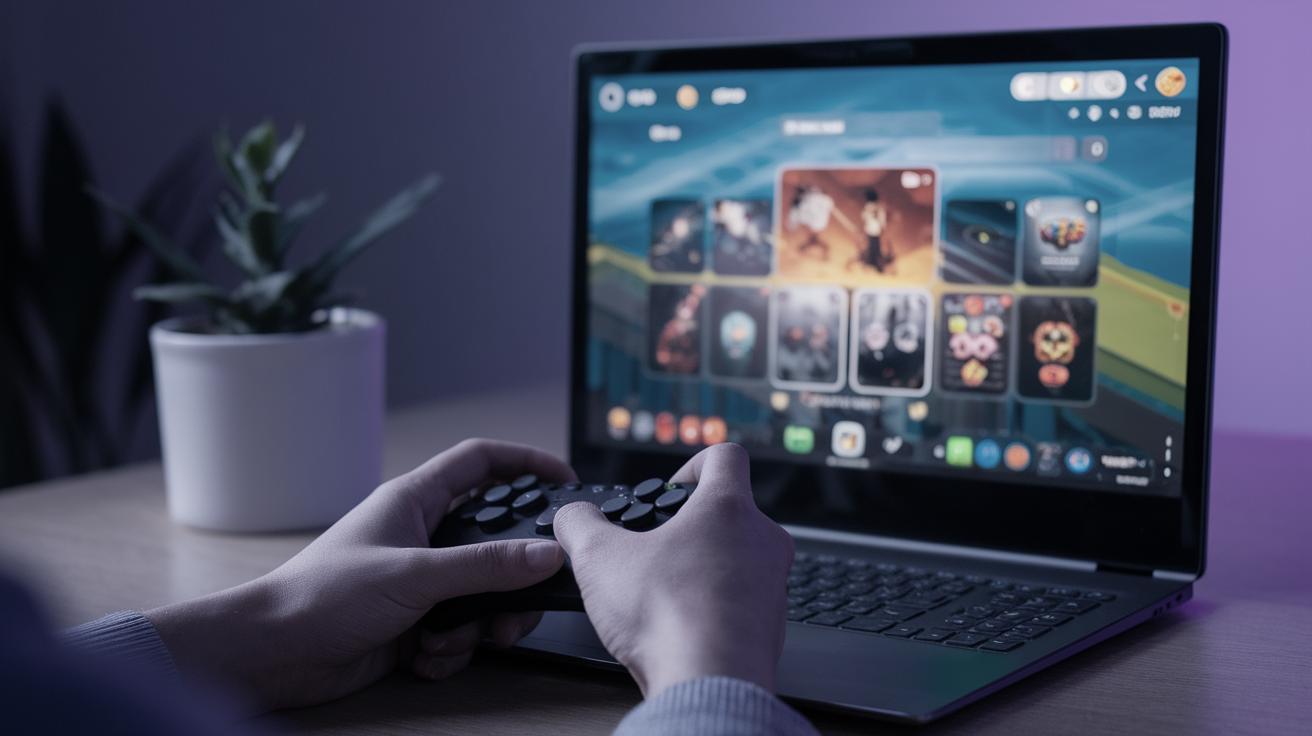
How to Play Android Games on PC
Android games, known for their wide accessibility and interactive designs, have taken the world by storm. While playing on mobile devices is commonplace, the immersive experience of large screens often beckons gamers to try them on PCs. With the advent of various emulators, playing Android games on PCs has become accessible and straightforward. This guide will delve into downloading developer emulators, understanding their differences from consumer experiences, enabling virtualization, responsibly handling data collection, checking release notes, exploring system requirements, and adhering to terms and conditions. Additionally, discover the advantages of a bigger screen and improved visibility.
Developer Emulator Downloads
Downloads
Developer emulators are crucial tools for experiencing Android games on a PC. These programs simulate Android operating systems, allowing users to run mobile applications as if on a physical device. To get started, you’ll need to download an emulator such as BlueStacks, NoxPlayer, or Andy, which are popular choices among gamers for their comprehensive features and user-friendly interfaces. It is essential to ensure you download these emulators from official websites to avoid potential security risks.
Once installed, these emulators provide functionality similar to an Android device, including access to the Google Play Store. Users can search, download, and play all their favorite Android games through this platform. Remember to check your system settings and allocate adequate resources to the emulator for a smooth gaming experience.
How to switch tracks
Switching between emulators or versions may be necessary for optimizing performance or expanding compatibility. This process involves uninstalling the previous version or emulator and installing the new one. Pay attention to backup settings, as some emulators might offer cloud save or export features—handy for preserving game progress when switching tracks.
Exploring the settings within each emulator is essential to understanding the control layout and features offered, as they often provide customization options to cater to a wide range of device configurations. This flexibility ensures that players can adapt their setups to suit particular game requirements or personal preferences.
Differences from the Consumer Experience
A primary difference lies in interfacing with the game controls. While mobile devices entail touch interactions, PC gaming relies on mouse and keyboard or gamepad inputs. Most emulators accommodate these differences, offering customizable control setups to recreate a seamless transition from mobile touch to PC control.
Additionally, the consumer experience on mobile often includes automatic updates and battery optimization features. On a PC, users must manually manage updates to their emulators and ensure that their systems have the necessary resources to support sustained gameplay without the thermal constraints of battery usage.
Enabling Virtualization
Virtualization is often a prerequisite for running emulators efficiently on a PC. It allows emulators to perform with increased efficiency by leveraging your computer’s hardware to create a virtual environment. To enable virtualization, access your computer’s BIOS settings upon startup and toggle the ‘Virtualization Technology’ or ‘VT-x’ option.
Not all systems have this capability, so verifying your device’s compatibility is crucial. Consult your motherboard’s or processor’s documentation if you encounter difficulties. Enabling this feature can substantially enhance the performance, allowing for smoother gameplay and faster response times within the emulated environment.
Data Collection
Metrics (performance and stability)
While running games on emulators, observing performance metrics can be insightful. Emulators often provide tools or plugins for monitoring CPU usage, RAM consumption, and frame rates. These metrics help diagnose performance bottlenecks, allowing users to tweak settings for optimal game performance.
Consider using third-party applications in conjunction with your emulator to gain deeper insights into system performance and stability. Understanding these metrics facilitates a better gaming experience and ensures your PC handles the gameplay demands efficiently.
Crash Reports
Occasionally, emulators may crash due to software glitches or conflicting programs. Crash reports are invaluable in diagnosing these issues. Most emulators generate logs that detail the events leading to a crash, offering clues to the root cause.
Utilize these reports to seek support from emulator communities or official help services. Engaging with these resources can ensure quick resolutions and improve future stability and performance.
Release Notes
Emulator developers regularly release updates to improve compatibility, features, and security. Reading release notes with each update provides insight into what has changed since a previous version and what new features or fixes have been implemented.
These notes often highlight resolved bugs, performance enhancements, and added functionalities that could significantly impact your gaming experience. Staying informed of these changes ensures that you can adapt and make the most of your emulator’s capabilities.
System Requirements
Each emulator has unique system requirements, typically including specific processor capabilities, RAM, and GPU specs. Understanding these requirements before installation is crucial to ensure your system is up to the task.
Moreover, your PC’s operating system and available storage space can affect compatibility. Budgeting this space is necessary for game installations and ensuring OS integrity remains intact, facilitating a smooth, continuous gaming session.
Terms and Conditions
Before using any emulator, reviewing the terms and conditions is essential. These documents lay out the rights, responsibilities, and limitations for both users and developers. They provide crucial information about permitted uses, potential restrictions, and warranty disclaimers.
Bigger Screen, Improved Visibility
One of the most significant advantages of playing Android games on a PC is the larger screen, offering an immersive experience and improved visibility. The expansive display enhances details that may be missed on smaller mobile screens, creating a visually enriching experience.
This bigger interface supports higher resolutions and frame rates, depending on your system’s capability, offering gamers a high-definition experience that can rival or surpass traditional console gaming, reinforcing the allure of PC as a gaming platform.
Summary of Main Points
| Section | Key Points |
|---|---|
| Developer Emulator Downloads | Download trusted emulators; switch between as needed for better performance. |
| Differences from the Consumer Experience | Mouse/keyboard controls; manual updates; resource management. |
| Enabling Virtualization | Improves emulator performance; accessible through BIOS settings. |
| Data Collection | Use metrics for performance analysis; crash reports aid troubleshooting. |
| Release Notes | Stay updated on new features and bug fixes for better experience. |
| System Requirements | Verify that your PC meets emulator requirements. |
| Terms and Conditions | Understand user rights, responsibilities, and limitations. |
| Bigger Screen, Improved Visibility | Enhanced gaming experience with improved detail and resolution. |